One of my favorite things about using Linux and BSD is Conky. Conky is a free, light-weight system monitor that can display nearly any information about your system directly on your desktop. Originally a fork of Torsmo, Conky’s torsmo-based code is BSD licensed. New code in Conky has been licensed under the GPL 3.0.
Installation is easy. On a Debian-based distribution like Ubuntu:
|
1 |
$ sudo apt-get install conky |
On Fedora-based distributions:
|
1 2 |
$ su # yum install conky |
And on BSD, if you’ve installed the Ports collection:
|
1 2 3 |
$ cd /usr/ports/sysutils/conky/ $ su # make install clean |
Or if you would prefer to add the package:
|
1 2 |
$ su # pkg_add -r conky |
Conky is very simple to configure. Using a pre-defined set of variables in a configuration file you define what Conky should monitor and where those monitored parameters are displayed on your desktop. The look and feel of what’s displayed is highly customizable.
On most systems the default configuration file location is /etc/conky/. There you will find the sample configuration file conky.conf. You’ll want to copy it to ~/.conkyrc and then start modifying it.
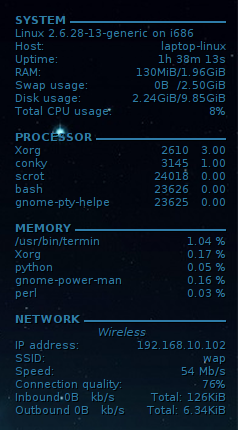
When setting up my Conky configuration, I decided to dispense with the fancy network graphs and other eye candy that I’ve seen in so many others use and go with a more utilitarian approach. I settled on four areas for Conky to monitor:
- System – basic system information showing kernel version, uptime, total RAM and Swap usage, etc.
- Processor – shows the top five applications or processes based on CPU usage
- Memory – shows the top five applications or process based on system RAM usage
- Network – shows basic information regarding wired and wireless connections, including IP address, inbound and outbound speed, connection quality, etc.
This minimalistic approach looks good (less “cluttered”) in my humble opinion, and provides just the information I need while not straining system resources.
One of the many cool things about Conky is its support for the use of conditional statements within its configuration file. The ${if_existing} variable, as an example, checks for the existence of a file passed to it as an argument and will display everything between ${if_existing} and the matching ${endif}. I used this particular variable to my advantage when configuring the network monitoring section. Instead of displaying information about each wired and wireless interface, even when they weren’t up, I chose instead to display information about them only if they were up by using the existence of a particular interface (e.g., eth0) in /proc/net/route.
Anyhoo, here’s the configuration file I’m currently using. Feel free use it as is or change it to fit your needs and taste. Post your Conky configuration in the comment section.
|
1 2 3 4 5 6 7 8 9 10 11 12 13 14 15 16 17 18 19 20 21 22 23 24 25 26 27 28 29 30 31 32 33 34 35 36 37 38 39 40 41 42 43 44 45 46 47 48 49 50 51 52 53 54 55 56 57 58 59 60 61 62 63 64 65 66 67 68 69 70 71 72 73 74 75 76 77 78 79 80 81 82 83 84 85 86 87 88 89 90 91 92 93 94 95 96 97 98 99 100 101 102 103 104 105 106 107 108 109 110 111 112 113 114 115 116 117 118 119 120 121 122 123 124 125 126 127 128 |
### Conky Display Settings # set to yes if you want Conky to be forked in the background background yes #font use_xft yes xftfont Sans:size=8 xftalpha 1 # Update interval in seconds update_interval 1.0 # This is the number of times Conky will update before quitting # Set to zero to run forever. total_run_times 0 # Create own window instead of using desktop (required in nautilus) own_window yes # Use pseudo transparency with own_window? own_window_transparent yes # If own_window is yes, you may use type normal, desktop or override own_window_type desktop # If own_window is yes, these window manager hints may be used own_window_hints undecorated,below,sticky,skip_taskbar,skip_pager # Use double buffering (reduces flicker-maybe) double_buffer yes # Minimum size of text area minimum_size 210 200 # Maximum width of text area maximum_width 240 # Draw shades? draw_shades yes # Draw outlines? draw_outline no # Draw borders around text? draw_borders no # Draw borders around graphs? draw_graph_borders no # Default colors and also border colors default_color white default_shade_color black default_outline_color white # Text alignment, other possible values are commented #alignment top_left alignment top_right #alignment bottom_left #alignment bottom_right #alignment none # Gap between borders of screen and text # same thing as passing -x at command line #(in pixels-me thinks) gap_x 12 gap_y 12 # Subtract file system buffers from used memory? no_buffers yes # Should all text to be in uppercase? uppercase no # number of cpu samples to average # set to 1 to disable averaging cpu_avg_samples 2 # Force UTF8? note that UTF8 support required XFT override_utf8_locale no ### Conky Output TEXT ${color 2F7CA9} ${font sans-serif:bold:size=8}SYSTEM ${hr 2} ${font sans-serif:normal:size=8}$sysname $kernel on $machine Host:$alignr$nodename Uptime:$alignr$uptime RAM:$alignr$mem/$memmax Swap usage:$alignr$swap/$swapmax Disk usage:$alignr${fs_used /}/${fs_size /} Total CPU usage:$alignr${cpu cpu0}% ${font sans-serif:bold:size=8}PROCESSOR ${hr 2} ${font sans-serif:normal:size=8}${top name 1} $alignr ${top pid 1} ${top cpu 1} ${top name 2} $alignr ${top pid 2} ${top cpu 2} ${top name 3} $alignr ${top pid 3} ${top cpu 3} ${top name 4} $alignr ${top pid 4} ${top cpu 4} ${top name 5} $alignr ${top pid 5} ${top cpu 5} ${font sans-serif:bold:size=8}MEMORY ${hr 2} ${font sans-serif:normal:size=8}${top_mem name 1}${alignr}${top mem 1} % ${top_mem name 2}${alignr}${top mem 2} % $font${top_mem name 3}${alignr}${top mem 3} % $font${top_mem name 4}${alignr}${top mem 4} % $font${top_mem name 5}${alignr}${top mem 5} % ${font sans-serif:bold:size=8}NETWORK ${hr 2} ${if_existing /proc/net/route eth1} ${font sans-serif:italic:size=8} $alignc Wireless ${font sans-serif:normal:size=8}IP address: $alignr ${addr eth1} SSID: $alignr ${wireless_essid eth1} Speed: $alignr ${wireless_bitrate eth1} Connection quality: $alignr ${wireless_link_qual_perc eth1}% Inbound ${downspeed eth1} kb/s $alignr Total: ${totaldown eth1} Outbound ${upspeed eth1} kb/s $alignr Total: ${totalup eth1} ${endif} ${if_existing /proc/net/route eth0} ${font sans-serif:italic:size=8} $alignc Wired ${font sans-serif:normal:size=8}IP address: $alignr ${addr eth0} Inbound ${downspeed eth0} kb/s $alignr Total: ${totaldown eth0} Outbound ${upspeed eth0} kb/s $alignr Total: ${totalup eth0} ${endif} ${if_existing /proc/net/route ppp0} ${font sans-serif:italic:size=8} $alignc Mobile ${font sans-serif:normal:size=8}IP address: $alignr ${addr ppp0} Inbound ${downspeed ppp0} kb/s $alignr Total: ${totaldown ppp0} Outbound ${upspeed ppp0} kb/s $alignr Total: ${totalup ppp0} ${endif} |
And here are some screenshots:

TNX!!!